Quick answer: Open OnStream, use Search or browse the Home tab, select a movie or episode, choose a server and quality (480p, 720p or 1080p), and press play. Tap the CC icon for subtitles and the download icon to save a title for offline viewing.
Table of Contents
First Launch
After you install OnStream APK, open the app. The first launch can take a few seconds while it loads the catalogue. If it asks for notification or storage permission, you can allow storage only if you plan to download videos. No sign-up is needed.
Understanding the Interface
| Section | What it does |
|---|---|
| Home | Trending, popular and recently added movies and series |
| Movies / TV Shows | Browse by category, genre and release year |
| Search | Find titles by name as you type |
| Favourites | Your saved movies and shows |
| Downloads | Titles saved for offline viewing |
| Settings | Theme, player, subtitles and app version |
Menu names can vary slightly between versions; the examples here follow v1.2.0.
How to Watch a Movie or Episode
Find the title
Use Search or browse a category.
Open the details page
Read the summary, year and rating. For a series, choose the season and episode.
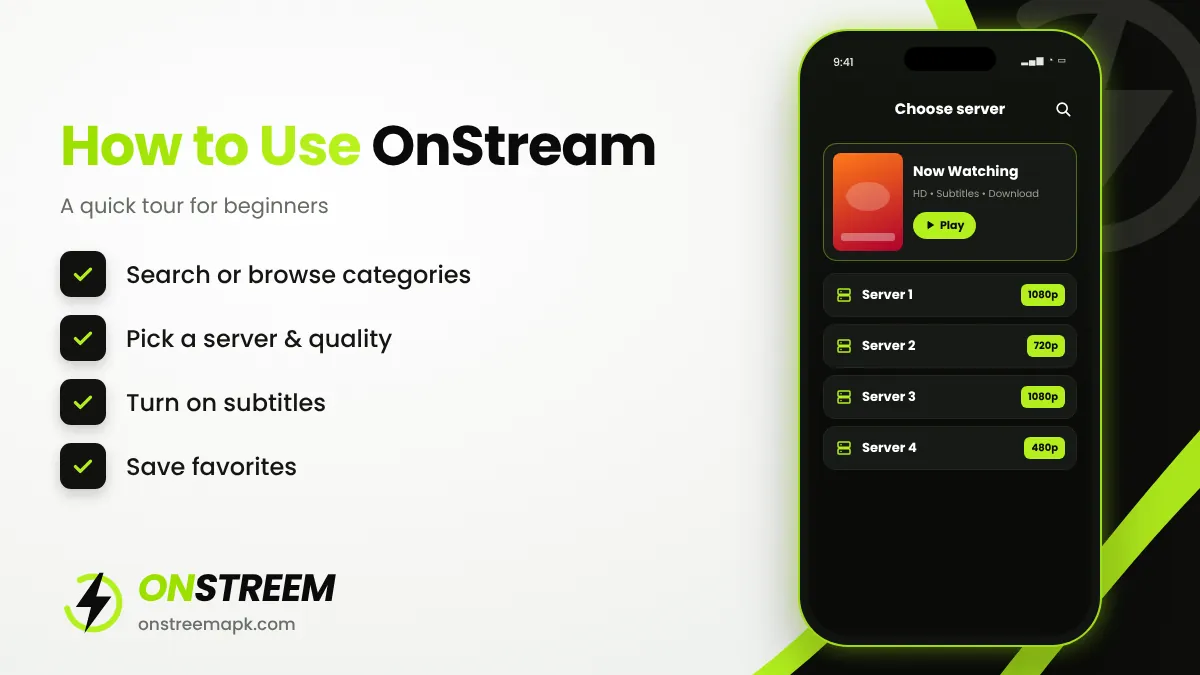
Choose a server
Pick the first server. If it does not load within 10 seconds, go back and choose another.
Pick a quality
1080p on fast Wi-Fi, 720p for most connections, 480p on mobile data.
Play
Rotate your phone for full screen. Double-tap the sides of the screen to skip forward or back, if your player supports it.
How to Turn On Subtitles
While a video is playing, tap the screen and select the CC or subtitles icon. Choose your language from the list. If the subtitles are out of sync, pick another subtitle file in the same language; there are often several. Some players also let you change the subtitle size and colour in settings.
How to Download Movies on OnStream
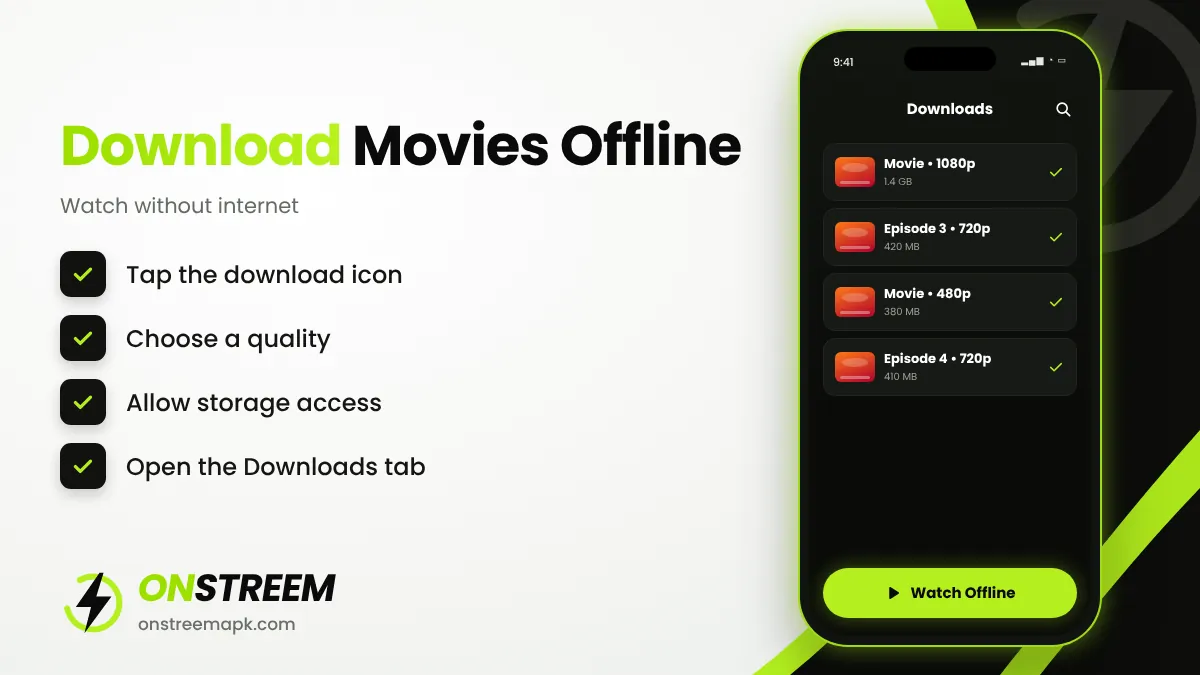
- Open the movie or episode you want.
- Tap the download icon (arrow pointing down).
- Choose a quality. Lower quality uses less storage: roughly 300–500 MB for a 480p film and 1–2 GB for 1080p.
- Allow storage access if asked.
- Find the file later under Downloads and play it offline.
On Fire TV and Android TV, storage is limited, so streaming is usually better than downloading.
Using Favourites and Watch History
Tap the heart or bookmark icon on any title to add it to Favourites. This makes it easy to continue a series. Your favourites are stored on your device, so uninstalling the app or clearing its data removes them.
Best Settings to Change
- Night mode: turn on dark theme for comfortable viewing at night.
- Default quality: set 720p if you often use mobile data.
- Player: switch player if you get a black screen with sound.
- Clear cache: do this monthly to keep the app fast.
How Much Data Does OnStream Use?
Streaming uses a lot of mobile data, so pick your quality carefully. These are typical values for video streaming apps:
| Quality | Data per hour (approx.) | Recommended speed |
|---|---|---|
| 480p (SD) | 0.5 – 0.7 GB | 3 Mbps |
| 720p (HD) | 0.9 – 1.5 GB | 5 Mbps |
| 1080p (Full HD) | 1.5 – 3 GB | 10 Mbps |
On a limited data plan, download titles on Wi-Fi and watch them offline later.
Using OnStream with a TV Remote
On Fire TV and Android TV, use the arrow keys to move between posters and the centre button to open a title. Press Back to close the player and Menu on Fire TV to see extra options. If a button is hard to reach, a mouse-toggle app adds an on-screen pointer. Setup steps are in our Firestick guide and Android TV guide.
Pro Tips
- Use the newest version so servers work; check the download page.
- If a title will not play, try it again later. Links refresh over time.
- On a big screen, install it on Firestick instead of casting from your phone.
- If something goes wrong, our troubleshooting guide has fixes.
FAQs
Can I download movies on OnStream?
Yes. Tap the download icon on a movie or episode, choose a quality, and watch it later from Downloads.
How do I change the language in OnStream?
Most titles play in their original language. Use the subtitles option to read them in your language.
Why is OnStream video quality low?
Pick a higher quality on the server list, or try another server. A slow connection can also force lower quality.
Can I cast OnStream to my TV?
Some builds support casting. If yours does not, install OnStream directly on a Fire TV Stick or Android TV.
Back to the main OnStream APK guide.