Quick answer: There is no official OnStream app for Windows or Mac. To use OnStream on a PC, install a free Android emulator such as BlueStacks or LDPlayer, download the OnStream APK (v1.2.0), and drag the file into the emulator window. It installs in under a minute and runs like it does on a phone.
Table of Contents
Why You Need an Emulator
OnStream is an Android app, and APK files cannot run on Windows or macOS directly. An Android emulator creates a virtual Android device on your computer. Once it is installed, you can install any APK inside it, including OnStream.
Microsoft's own Windows Subsystem for Android was discontinued in 2025, so a third-party emulator is now the practical choice.
PC Requirements
| Item | Minimum | Recommended |
|---|---|---|
| Operating system | Windows 10 (64-bit) | Windows 11 |
| Processor | Intel or AMD dual-core with virtualization | Quad-core or better |
| RAM | 4 GB | 8 GB or more |
| Storage | 5 GB free (SSD preferred) | 10 GB free on an SSD |
| Graphics | Updated graphics drivers | Dedicated or recent integrated GPU |
Turn on virtualization (VT-x / AMD-V) in your BIOS if the emulator says it is disabled. This one setting fixes most lag problems.
How to Install OnStream on Windows 10 or 11
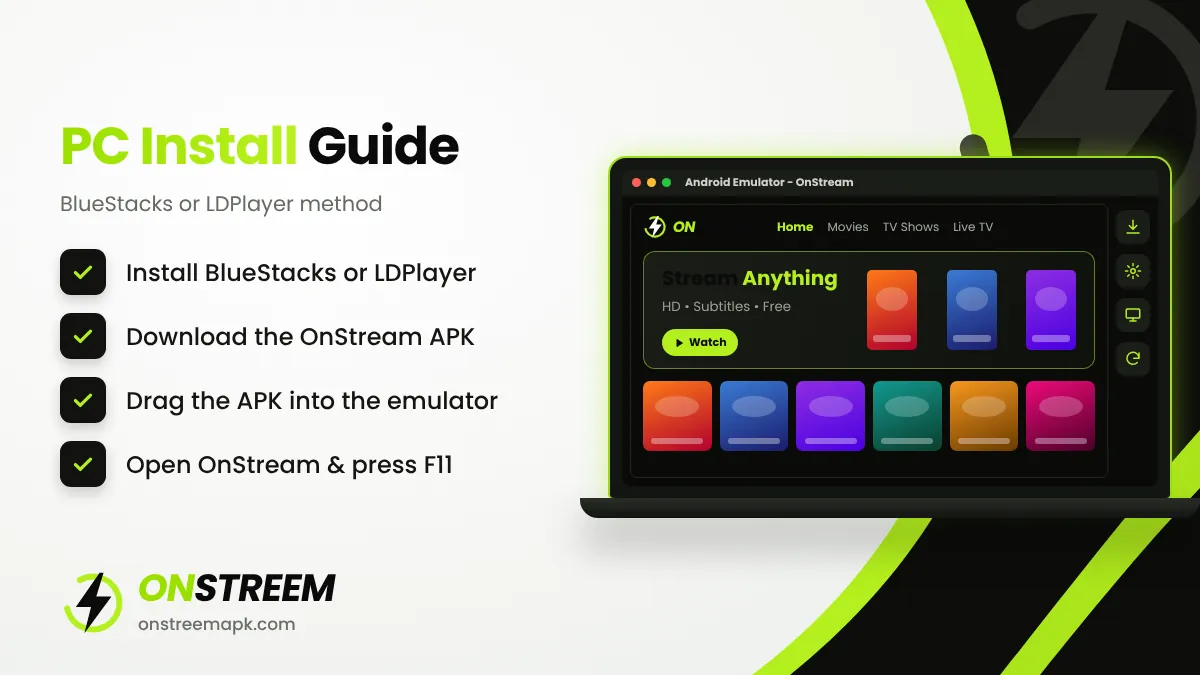
Install BlueStacks or LDPlayer
Download the emulator from its official website (bluestacks.com or ldplayer.net) and run the installer. Avoid "bundled" downloads from other sites.
Set up the emulator
Open it and finish the first-time setup. Signing in to Google is optional; OnStream does not need it.
Download the OnStream APK
On your PC, download the APK from our OnStream APK download page. It saves to your Downloads folder.
Install the APK
Drag and drop the APK file onto the emulator window. In BlueStacks you can also click Install APK on the side toolbar and select the file.
Launch OnStream
The OnStream icon appears on the emulator home screen. Click it, wait for the catalogue to load, and start watching. Press F11 for full screen.
How to Install OnStream on Mac
On Apple Silicon Macs (M1, M2, M3, M4), use BlueStacks Air, the version of BlueStacks built for Apple chips. On older Intel Macs, the standard BlueStacks for Mac works.
- Download BlueStacks Air from bluestacks.com and move it to your Applications folder.
- Open it and allow any security prompts in System Settings > Privacy & Security.
- Download the OnStream APK on your Mac.
- Drag the APK into the BlueStacks window or use its Install APK option.
- Open OnStream from the emulator's home screen.
Best Emulators for OnStream
| Emulator | Works on | Best for |
|---|---|---|
| BlueStacks 5 | Windows 10/11 | Easiest setup and smooth video playback |
| BlueStacks Air | Apple Silicon Macs | Mac users with M-series chips |
| LDPlayer 9 | Windows 10/11 | Lower-spec laptops, light on RAM |
| MEmu Play | Windows 10/11 | Simple interface, quick APK install |
Tips for Smooth Playback on PC
- Give the emulator at least 4 GB of RAM and 4 CPU cores in its settings if your PC allows it.
- Set the emulator's graphics mode to DirectX if videos show a black screen, or OpenGL if they stutter.
- Close other heavy programs such as games or video editors while streaming.
- Use a wired connection or 5 GHz Wi-Fi for 1080p streams.
- Keep OnStream updated to v1.2.0 for working links.
Watch on a Bigger Screen Instead
If you only want OnStream on a TV, a PC is not the easiest route. Installing OnStream directly on a Fire TV Stick or an Android TV gives you a remote-friendly experience without an emulator.
Common PC Problems
| Problem | Fix |
|---|---|
| Emulator is very slow | Enable virtualization in BIOS and assign more RAM and CPU cores. |
| APK will not install | Download the APK again; partial downloads cannot be installed. |
| Video plays with no sound | Check the emulator's audio device setting and Windows volume mixer. |
| Black screen in the player | Switch graphics mode between DirectX and OpenGL and restart. |
OnStream for PC FAQs
Is there an official OnStream app for Windows?
No. OnStream is only made for Android. On Windows you run it through an Android emulator.
Can I use OnStream in a web browser?
OnStream is an app, not a website. Sites that offer "OnStream online" in a browser are not connected to the app and often carry aggressive ads.
Which emulator is best for OnStream?
BlueStacks 5 is the easiest on Windows, LDPlayer is lighter on low-spec PCs, and BlueStacks Air is the best choice on Apple Silicon Macs.
Does OnStream for PC cost anything?
No. Both OnStream and the emulators listed here are free to use.
Back to the main OnStream APK guide.