Quick answer: On Android TV or Google TV, install the Downloader app from the Google Play Store, allow it to install unknown apps in Settings > Apps > Security & restrictions, then use it to download and install the OnStream APK (v1.2.0). You can also copy the APK to a USB drive and install it with a file manager.
Table of Contents
Supported TVs and Boxes
OnStream works on any TV or box that runs Android TV 7.0 or newer, including:
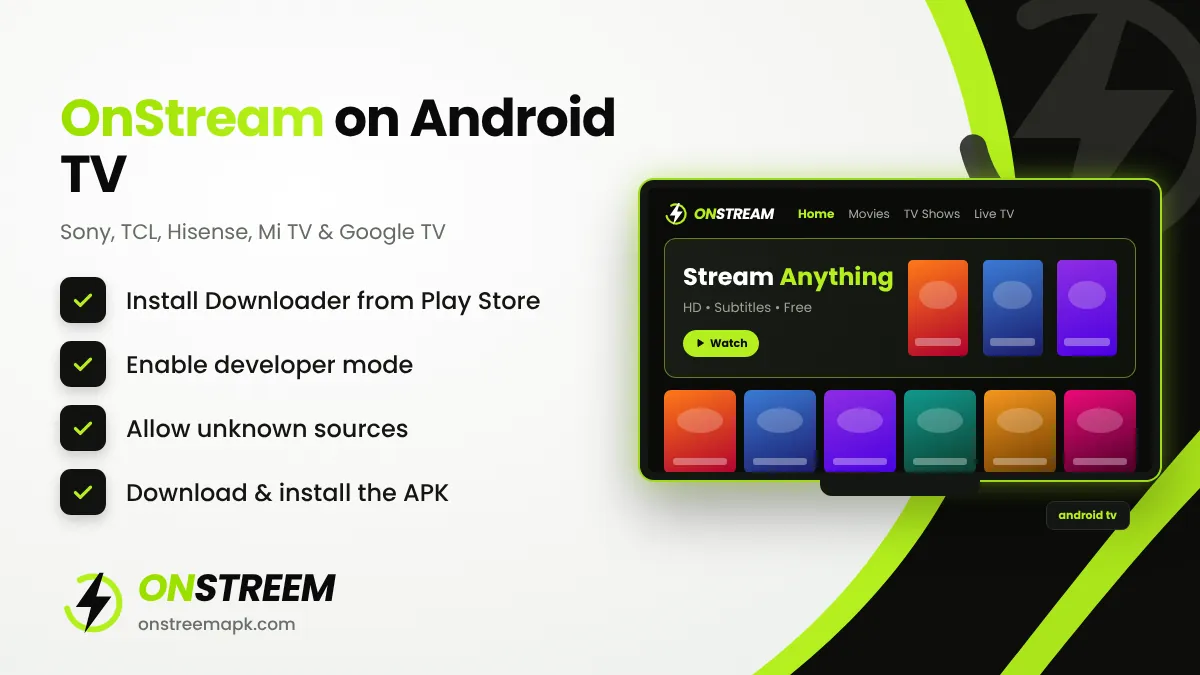
- Sony Bravia, TCL, Hisense, Philips, Xiaomi Mi TV and Realme smart TVs with Android TV or Google TV
- Chromecast with Google TV and Google TV Streamer
- Nvidia Shield TV, Xiaomi Mi Box and Mi TV Stick
- Generic Android TV boxes (X96, H96, T95 and similar)
It does not work on Samsung Tizen TVs, LG webOS TVs, Roku or Apple TV, because these systems cannot install APK files. For those TVs, connect a Fire TV Stick or an Android TV box.
Method 1: Install with the Downloader App (Recommended)
Install Downloader
Open the Google Play Store on your TV, search for Downloader by AFTVnews, and install it.
Enable developer mode (Google TV)
On Google TV, go to Settings > System > About and select Android TV OS build seven times until you see "You are now a developer". Classic Android TV usually does not need this step.
Allow unknown apps
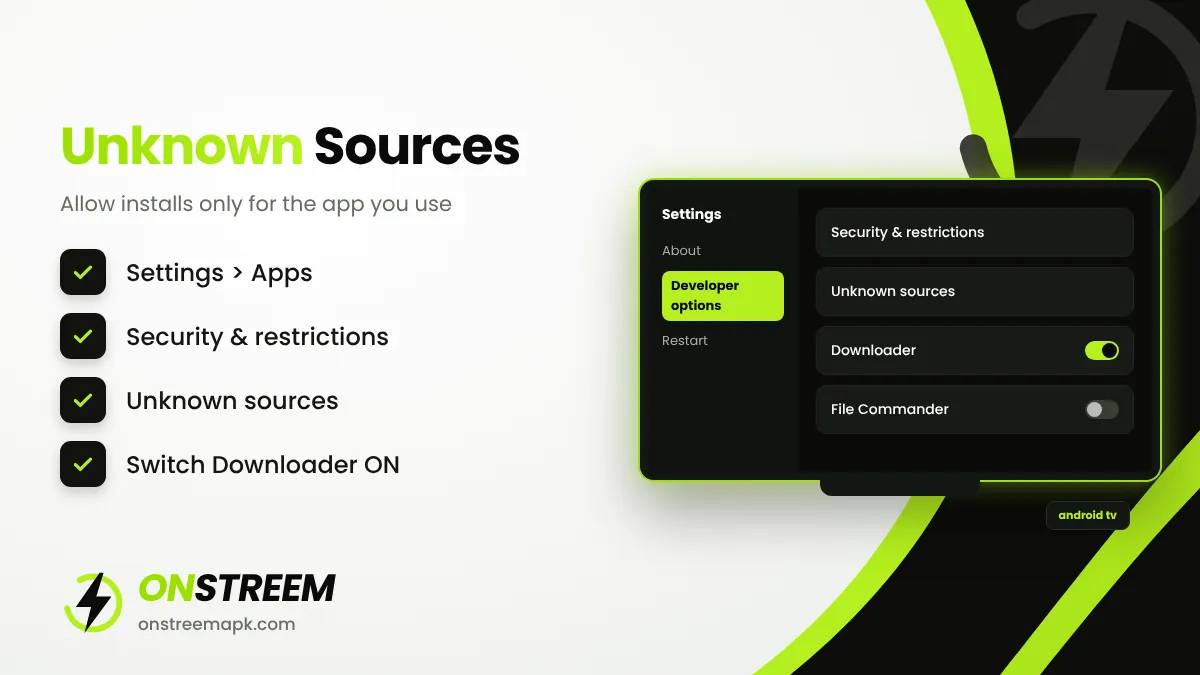
Go to Settings > Apps > Security & restrictions > Unknown sources and switch on Downloader. On some TVs the path is Settings > Device Preferences > Security & restrictions.
Download OnStream
Open Downloader and enter the URL onstreemapk.com/download/. Press Go and download the OnStream APK.
Install and open
Select Install, then Open. Delete the APK file afterwards to save space.
Method 2: Install from a USB Drive
Use this method if your TV has a slow connection or Downloader is not available in your region.
- Download the OnStream APK on your computer from our download page.
- Copy the file to a USB flash drive and plug it into your TV or box.
- Install a file manager from the Play Store, such as File Commander or X-plore File Manager.
- Allow the file manager to install unknown apps (same menu as above).
- Open the USB drive in the file manager, select the APK and choose Install.
Using OnStream with a TV Remote
OnStream is designed mainly for touch screens, so a few screens can be awkward with a remote. These tips help:
- Use the arrow keys to move and the centre button to select. Press Back to leave the player.
- If a button cannot be reached, install a free mouse toggle app for Android TV, which adds an on-screen pointer.
- Use the Google TV voice search on your remote to open OnStream quickly.
- Choose 1080p on 4K TVs with a strong connection; use 720p on older boxes.
Android TV Troubleshooting
| Problem | Fix |
|---|---|
| Unknown sources option missing | Enable developer mode first, then check Security & restrictions again. |
| OnStream icon not on home screen | Open Apps > See all apps; sideloaded apps sometimes only show there. |
| App opens in portrait mode | Install a rotation control app or use OnStream's landscape setting if available. |
| Videos buffer | Lower the quality, use Ethernet, and clear OnStream's cache. |
More fixes are in our OnStream not working guide.
Android TV FAQs
Can I install OnStream on a Samsung or LG smart TV?
Not directly. Samsung (Tizen) and LG (webOS) TVs cannot install APKs. Plug in a Fire TV Stick or Android TV box instead.
Does OnStream work on Chromecast with Google TV?
Yes. Enable developer mode, allow unknown sources for Downloader, and install the APK.
Is there an OnStream Android TV APK that is different from the phone APK?
OnStream uses the same APK for phones and TVs. The latest version is v1.2.0.
How do I update OnStream on Android TV?
Download the new APK with Downloader and install it over the existing app. Your saved favourites remain.
Back to the main OnStream APK guide.